
Negative keywords stop your Sponsored Products, Sponsored Brands, or Sponsored Display ads from showing on search terms or product pages that waste your budget. The single most useful habit you can build this week is pulling your Search Term Report and adding a negative exact match for any query that’s burned significant spend with zero sales. Start narrow with negative exact, and only reach for negative phrase when an entire theme, not just one term, needs blocking.
TL;DR:
- Negative exact match prevents irrelevant search terms with high spend and zero sales, especially when spend exceeds 50% of the product price.
- Campaign-level negatives should only be used for terms irrelevant across all ad groups, while ad group negatives are better for SKU-specific exclusions.
- Once added, negative keywords cannot change match type, so careful selection and thorough review before submission are essential.
- Automating negative keyword management through tools like Osellpa improves efficiency and provides profit-based insights, reducing manual effort.
- Relying solely on regular review without a clear spend-based decision rule risks inefficient blocking and ongoing wasted ad spend.
Table of Contents
- What are negative keywords on Amazon and how do they work?
- Where do you find negative keyword candidates?
- Where should you add negatives: campaign, ad group, or product level?
- How do you add negative keywords in Amazon Ads?
- What mistakes should you avoid with negative keywords?
- How does automation change negative keyword management?
- Why the spend rule beats most negative keyword advice
- Get the negative keyword workflow running without the spreadsheet
- Sources
What are negative keywords on Amazon and how do they work?
Negative keywords tell Amazon’s ad system where not to show your ads. You’re not bidding to appear. You’re actively excluding a search term or phrase from triggering your listing, which is a different mechanic from standard targeting and one many sellers misunderstand early on.
Amazon supports two negative match types, and understanding the difference matters because you can’t switch between them later:
- Negative exact blocks the exact term and its close variants (plurals, minor misspellings, word order). You can use up to 10 words and 80 characters per entry.
- Negative phrase blocks the phrase and close variations wherever it appears within a longer search term, up to 4 words and 80 characters.
- There is no negative broad match on Amazon, according to Amazon’s own advertising documentation, which rules out one common assumption sellers carry over from Google Ads.
Negatives only affect paid placements, Sponsored Products and Sponsored Brands campaigns specifically, not your organic search ranking. Once you set a match type on a negative keyword, it’s fixed. You’ll need to delete it and re-add it as the other type if you get it wrong, so it’s worth pausing before you submit a batch.
Where do you find negative keyword candidates?
The Search Term Report is the canonical source for this work, and treating it as a weekly habit rather than a one-off audit is what separates accounts that bleed spend from ones that don’t.
- Export the Search Term Report for the date range you want to review, ideally 30 to 60 days for a fair sample.
- Sort by spend, then filter for terms with clicks but zero orders. These are your primary candidates.
- Pay close attention to automatic campaigns. They’re the richest source of new search terms because Amazon is matching your product against a huge pool of queries, but that breadth is exactly why they generate so much irrelevant traffic.
- Apply a spend-based rule rather than eyeballing click counts: negate a term once its spend exceeds roughly 50% of your product’s price with no resulting sale, a threshold widely used across practitioner guidance because it scales sensibly with product price rather than penalising a £8 item and a £180 item by the same flat spend figure.
Practitioners recommend confirming negation decisions with sufficient click data where possible to avoid mistakenly blocking potentially profitable search terms. Combining a spend threshold relative to product price with a reasonable minimum number of clicks helps create a more consistent filter.
Where should you add negatives: campaign, ad group, or product level?
Scope decides how much traffic a single negative blocks, and getting it wrong either leaves waste running or accidentally shuts off good traffic elsewhere in your account.
- Campaign-level negatives apply across every ad group inside that campaign. Use these for terms that are irrelevant to everything you sell in that campaign, things like “free,” “replacement,” or a competitor brand name that shows up attached to your category.
- Ad group-level negatives apply only within a single ad group. These suit SKU-specific exclusions, such as blocking a colour or size variant search term from an ad group that promotes a different variant of the same product.
- Negative product (ASIN) targeting stops your ad showing on a specific, incompatible product detail page. This is particularly relevant for Sponsored Display placements, where your ad might land on a page for a product that looks similar but serves a completely different use case.
Choosing scope carelessly is how accounts end up with overlapping, contradictory negatives that nobody remembers adding. If you’re running a search-term isolation structure, where converting terms graduate into their own exact-match campaigns, the negative architecture across campaigns needs to stay consistent, or you’ll end up bidding against yourself.
Pro Tip: Before adding a campaign-level negative, ask whether every ad group inside that campaign genuinely sells nothing related to that term. If even one does, drop the negative to ad group level instead.
How do you add negative keywords in Amazon Ads?
The mechanics are straightforward once you’ve decided on your candidates and their scope, though a few platform quirks catch out sellers who assume it works like other ad platforms.
- Download the Search Term Report from Campaign Manager and identify your candidates using the spend and clicks filters described above.
- Decide match type for each: negative exact for specific terms, negative phrase only when an entire theme is irrelevant.
- Navigate to the relevant campaign or ad group inside Campaign Manager, then add the negative keywords or negative product targets, following the process detailed in Amazon’s Support Centre.
- Submit and wait. Changes can take up to 72 hours to fully process, so don’t judge impact after a day and assume nothing happened.
- Set a monitoring cadence: check back after 7 to 14 days and watch ACoS, spend by search term, and conversion rate on the affected campaigns.
One constraint worth repeating because it trips people up constantly: you cannot change a negative keyword’s match type once it’s added. If you meant exact and picked phrase, you’ll need to remove it and start again, so double check before you submit a batch of twenty at once.
What mistakes should you avoid with negative keywords?
Over-blocking is the most common failure mode, and it’s almost always caused by using negative phrase where negative exact would have done the job.
A negative phrase blocking “case” to stop irrelevant results for a phone accessory can quietly kill searches for “phone case with card holder” or “waterproof phone case for swimming,” both of which might convert perfectly well. Because negative phrase blocks the phrase wherever it sits inside a longer query, it catches far more than sellers intend. Practitioner guides consistently flag this as the single biggest way accounts lose profitable long-tail traffic without anyone noticing for weeks.
- Use the spend-based rule, not click count alone, and confirm with a minimum clicks threshold where the data supports it.
- Default to negative exact. Reserve negative phrase for cases where you’re certain an entire theme, not one query, is irrelevant.
- Keep automatic campaigns running even after you’ve harvested from them. They’re still your best discovery engine for new converting terms.
- When a term graduates into an exact-match isolation campaign, add the matching negative back in the source campaign so you’re not bidding against yourself.
| Practice | Why it matters |
|---|---|
| Spend-based negation rule | Scales the decision to product price rather than a flat click count |
| Negative exact by default | Limits blast radius, avoids catching profitable long-tail variants |
| Weekly Search Term Report review | Catches waste before it compounds across a month |
| Consistent negative architecture across campaigns | Prevents internal overlap when running search-term isolation |
How does automation change negative keyword management?
Manually harvesting search terms, applying a spend rule, and uploading negatives works fine at low volume. It becomes genuinely painful once you’re running automatic and manual campaigns across dozens of SKUs, each generating its own report every week.
This is where automated, API-connected tools change the maths. Osellpa integrates directly with Amazon’s advertising API to surface search-term waste as it happens, rather than waiting for you to remember to export a report on a Friday afternoon.
- Osellpa flags high-spend, no-sale search terms automatically and can apply negative additions without you manually cross-referencing report exports.
- Osellpa’s profit tracking sits alongside PPC data, so you can see the direct margin impact of adding a given negative rather than guessing whether ACoS improvement is masking a sales drop.
- Because the connection runs through Amazon’s own API for negative targeting, the additions follow the same match-type rules and processing behaviour described above, just without the manual export step.
Why the spend rule beats most negative keyword advice
Most guidance on negative keywords stops at “review your Search Term Report regularly,” which is true and almost useless without a decision rule attached to it. Reviewing a report tells you nothing if you don’t know at what point a term earns a negative. That’s the gap the spend-based threshold closes: it turns a vague habit into a number you can act on consistently, whether your product sells for £9 or £190.
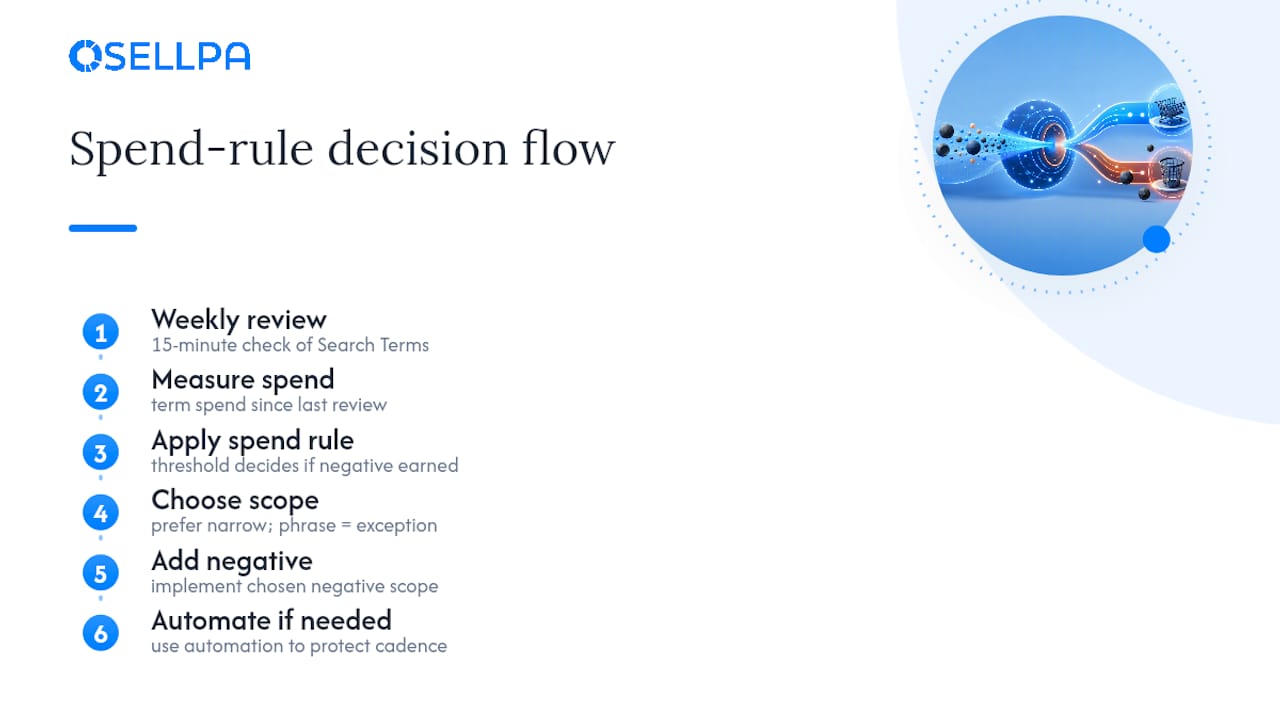
Where I think sellers go wrong most often is treating negative phrase as the default “strong” option, as if broader blocking is automatically safer. It’s the opposite. Negative phrase is a blunt instrument, and it should be the exception, not the starting point.
The bigger shift, though, is cadence. A weekly fifteen-minute review, spend rule applied, negatives added at the right scope, will outperform a quarterly deep audit every time, because waste compounds silently between reviews. If you’re managing this manually, protect that weekly slot. If you’re not, that’s precisely the gap automation is built to fill.
— Harry
Get the negative keyword workflow running without the spreadsheet
The steps above work. They also take real time every week if you’re pulling reports, applying the spend rule by hand, and cross-checking scope across campaigns yourself. Osellpa removes that manual layer by connecting directly to your Amazon advertising data, surfacing high-spend, no-sale search terms automatically and tying the impact of every negative you add back to your actual profit margin, not just ACoS.
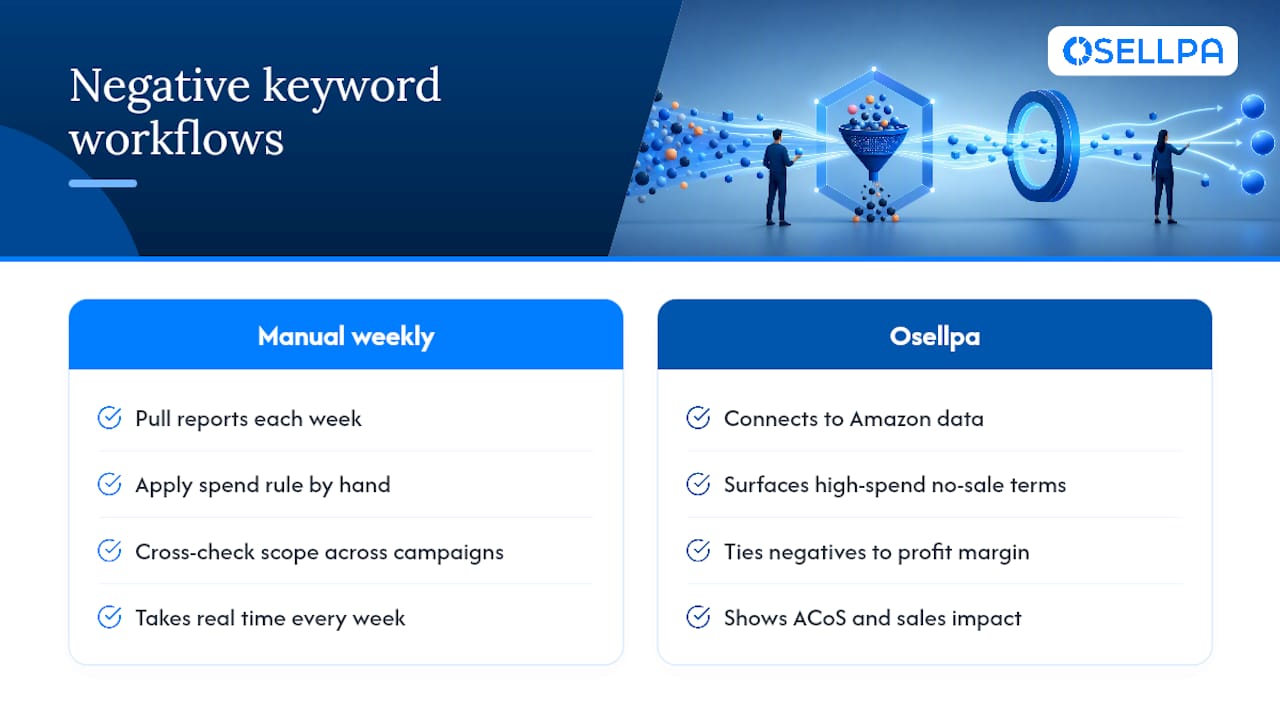
That matters because ACoS alone can hide a sales drop behind a tidier-looking number. Osellpa shows you both sides. Sellers using its PPC optimisation and profit tracking together get a clearer read on which negatives are genuinely protecting margin and which ones were unnecessary. If you’re spending hours each week on Search Term Report exports and manual uploads, start a trial with Osellpa and see how much of that work can run in the background instead.


