
On Amazon UK you can send one Request a Review per order, between 5 and 30 days after the delivery date. Inside that window, the best day depends on how long your customer needs to form an opinion of the product. A phone case can be judged in a day. A skincare serum cannot. The sellers who get the most from the button choose a send day per product, then apply it to every order without exceptions. Doing that by hand gets tedious fast, which is why we built automated review requests into Osellpa.
This guide covers the window itself, how to choose a day for your products, where to click, why the button sometimes refuses to appear, and the rules that sit around timing.
TL;DR
- Amazon permits one Request a Review per order, from 5 to 30 days after the delivery date, and nothing outside that window.
- Send early (roughly days 5 to 10) for simple products, and later in the window for products that need time or repeated use.
- The button sits on the Order Details page, and it can show as ineligible for reasons other than timing.
- Pick one send day per product and apply it to every order. Choosing buyers by how happy they seem is against Amazon’s policies.
- Automating the click saves hours, provided the tool respects the window and the one-request limit.
Table of Contents
What the 5 to 30 day window actually is
Amazon’s own staff describe the feature on the Europe Seller Forums: you can use it once per order, between 5 and 30 days after the order delivery date. The aim is that customers get a relevant, recent request rather than one about something they bought months ago.
Two details matter for planning:
- The 30-day ceiling is also in the rules. Amazon’s UK Communication Guidelines allow proactive messages asking for a product review or seller feedback only within 30 days of order completion. Miss the window and you cannot make up for it with a message you write yourself.
- Outside the window the button does not work. It either disappears or appears greyed out on the order page, depending on the guide you read. Either way, you cannot force it.
There is no penalty for sending on day 5 or day 30. The only cost of choosing badly is a customer who has not yet tried the product, or one who has forgotten the order.
How to choose your send day
The pages that rank for this topic mostly cover hotels, Airbnb and service businesses, where a stay ends on a known date. Amazon is different: you do not know when the parcel is opened, how long assembly takes or when the first proper use happens. So the aim is to estimate the day a typical buyer has formed an opinion, then add a small margin.
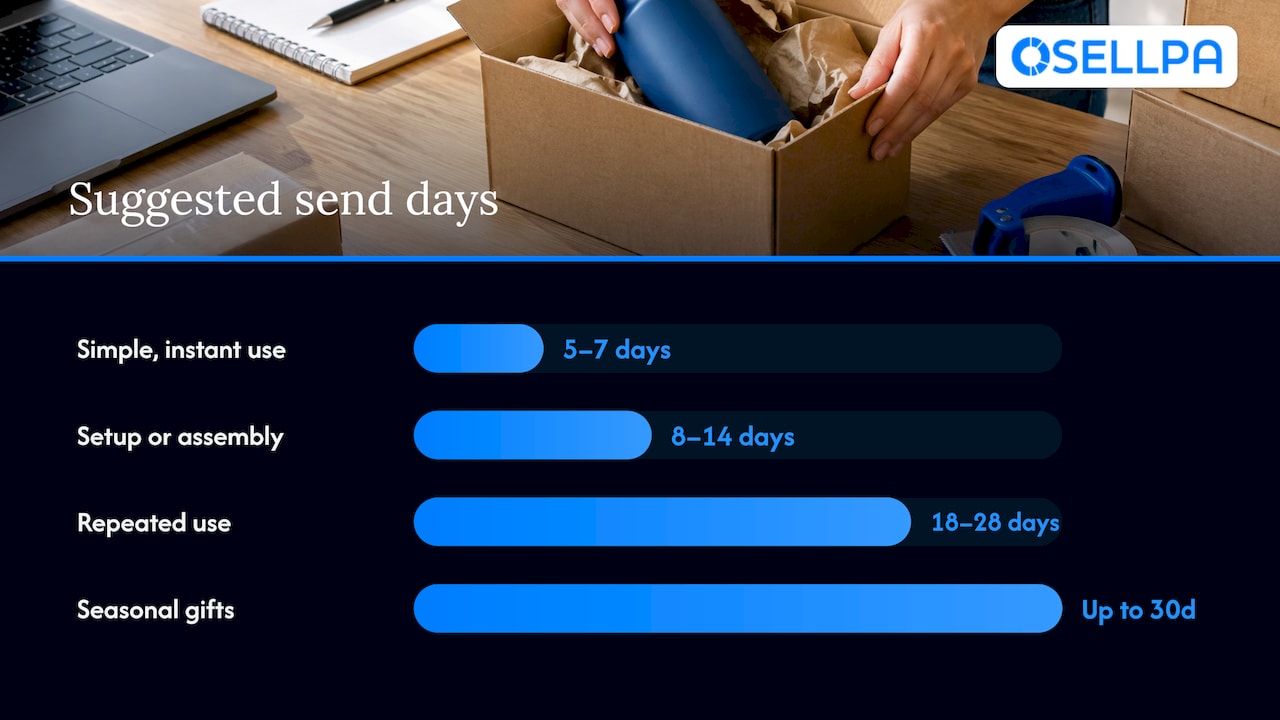
UK agency guidance gives a useful rule of thumb. Estore Factory advises sending nearer the 30-day mark for products that need time to test, such as skincare and electronics, and in the 5 to 10 day range for simpler items. Here is how that translates into a working plan:
| Product type | Example | Suggested send day after delivery | Reasoning |
|---|---|---|---|
| Simple, instant use | Phone cases, kitchen utensils, stationery | Days 5 to 7 | The buyer knows whether it works almost immediately |
| Needs setup or assembly | Furniture, smart plugs, garden equipment | Days 8 to 14 | Buyers need to unpack, build and try it |
| Needs repeated use | Skincare, supplements, pet food | Days 18 to 28 | A single use says little about results |
| Seasonal or gift items | Christmas decorations, gifts | Judge by the occasion, up to day 30 | The recipient may not open it until the event |
These are starting points, not Amazon figures. Treat them as a first guess and adjust as you learn.
Use your own data to refine it
Two sources of evidence tell you more than any generic guide:
- Your existing reviews. Look at the reviews that mention use over time (“after three weeks”, “used it daily”). That tells you how long buyers wait before they feel able to judge.
- Your returns and questions. If most returns arrive in the first week, a request on day 5 lands at the point where unhappy buyers are already deciding. That is not a reason to skip them. Selecting who to ask is not permitted. It does tell you the product or listing may need work before timing matters.
Change one product’s send day at a time, and give it a few weeks before comparing the review rate. Changing everything at once leaves you unable to tell what worked. Our guide to Amazon review rate benchmarks for UK sellers covers how to measure the result.
Keep the last days as a safety net
Days 28 to 30 are a last chance, not a plan. A request sent at the very end of the window lands when the purchase has faded from memory. It is better than none, but sending it inside the window is cheaper than recovering it later.
Where to find the button and how to send it
The steps are short. The only skill is remembering to do them on the right day for every order.
- In Seller Central, go to Manage Orders.
- Click the Order ID of a delivered order.
- On the Order Details page, click Request a Review.
That is all. Amazon’s forum guidance for new sellers describes exactly this route through Manage Orders and the order details page. If you prefer a visual walkthrough of requesting feedback in an orderly sequence, there is a step by step feedback request guide that helps you build the habit.
What the customer receives
You do not write the message. Amazon sends one standardised email asking for both a product review and seller feedback, and the wording is translated automatically into the customer’s preferred language. You cannot add a personal note, change the tone or attach anything.
That is a strength. Every buyer receives the same neutral ask, so you cannot accidentally breach the rules by nudging the wording towards five stars. Writing your own review request is the riskier route, which is why the button is the better tool for the job.
One limit to be aware of: the email only reaches buyers who have not opted out of Amazon’s non-critical emails, and the seller is not told when a buyer has opted out.
Why the button may not appear on day 5
Sellers often count five days from delivery, find no button and assume something is broken. Timing is only one of the reasons. Amazon’s forum guidance lists the common ones: the button can show as ineligible if the order is outside the 5 to 30 day window, a review was already requested, or Amazon has already solicited one.
A few more situations to check:
- Amazon Business orders. These have a separate feedback system, so the button does not appear for them.
- Seller-fulfilled orders. Delivery needs to be confirmed by the carrier before the window can open.
- Returns and cancellations. A cancelled or returned order is not a candidate for a request.
- Amazon got there first. Amazon already sends review requests to customers automatically at no cost, so the order may already be covered.
If the order should be eligible and the button is missing, check the order detail page again the next day before assuming a fault. Delivery data sometimes updates late.
The rules around timing
Timing is one rule among several. Getting the day right means nothing if the request itself breaks policy.
- One request per order. Amazon’s guidelines explicitly prohibit a repeat review or feedback request for the same order. There are no second chances, so choose the day carefully.
- Do not double up. Clicking the button means agreeing not to send another review request for that order through Buyer-Seller Messaging. Do not follow up with your own message.
- Treat every buyer the same. Asking only the customers you expect to be happy is selective solicitation, and review policies prohibit it. A fixed send day for every order of a product is the cleanest way to stay on the right side.
- No incentives. No discounts, refunds, gifts or any other reward for reviews.
- Never ask a buyer to change a review. This is also prohibited.
The legal backdrop has tightened too. A UK seller should know that from April 2025 the Digital Markets, Competition and Consumers Act 2024 made fake and concealed incentivised reviews illegal, with the Competition and Markets Authority able to fine up to 10% of global turnover. A consistent, neutral, button-based process is easy to defend if anyone ever asks.
Automating the send without breaking the rules
Amazon’s guidelines permit proactive review requests through Amazon’s own templates, third-party Appstore applications or the API. The same guidelines require the request to be sent within 30 days of order completion and to include the 17-digit order ID in the buyer’s preferred language. Using the button or an approved integration takes care of both, which is why the guidelines are worth reading once in full.
The manual process works at ten orders a week. At a few hundred it becomes a daily chore, and every missed day risks an order slipping past day 30. Automation solves a real problem here: the send day is a rule, and rules are what software does well.
Whatever you use, it should:
- send only inside the 5 to 30 day window;
- send no more than one request per order;
- apply the same send day to every order of a product, with no filtering by how satisfied the buyer seems;
- stop for orders that are ineligible rather than trying again.
Our guide to automating review requests on Amazon UK safely walks through the set-up, and how to increase Amazon reviews without breaking policy covers the wider picture beyond timing.
Putting a send day on autopilot

Osellpa includes automated review requests alongside profit tracking, PPC optimisation and listing tools, all connected to your Amazon data through the Amazon API. That means the review timing rule you settle on lives in the same place as the rest of your numbers, with no spreadsheet to remember it in.
Plans are billed monthly or annually. On the pricing page, Launch is £10 per month (£96 per year), Scale is £20 per month (£192 per year) and Advanced is £40 per month (£384 per year).
Our view on review timing
Most sellers treat the review request as a task. We treat it as a rule. The decision that matters is made once, per product: on which day after delivery does a typical buyer know enough to give a fair opinion? After that, every order should follow the rule without anyone remembering to click.
That is the reason Osellpa connects to Amazon through the API and puts review requests next to profit and advertising data. A review rate that moves after you change a send day is a business result, and you can only read it properly when the rest of your numbers sit in the same view. Sellers who track it this way stop guessing at timing and start adjusting it.
For part-time sellers and new sellers especially, this removes a daily chore that is easy to forget. For larger sellers, it removes the risk of hundreds of orders drifting past day 30 unnoticed.
Harry
FAQ
Can I send a Request a Review before day 5?
No. Amazon opens the window five days after the delivery date, and outside it the button is not available. Use the time before day 5 to make sure the order arrived without problems, since a buyer who is still waiting for a parcel cannot review it.
Can I send a second request if the buyer does not respond?
No. Amazon’s UK Communication Guidelines prohibit repeat requests for the same order, and only one is allowed per order. Put your effort into choosing the best send day the first time.
Does the customer see my name on the request?
The email is sent by Amazon and asks the buyer to rate both the product and the seller. You cannot edit the wording, which keeps the request neutral for every buyer and inside the rules.
What if I miss the 30-day deadline?
Once the window has closed, the request cannot be sent and you cannot replace it with your own message asking for a review. The practical fix is process: set a send day per product and automate it, so that no order is left until the final days.
Sources
- Amazon Europe Seller Forums: Request a Review once per order, 5 to 30 days after delivery
- Amazon UK Communication Guidelines (PDF)
- Amazon UK Seller Forums: how to request customer reviews from Manage Orders
- Estore Factory: how to get reviews on Amazon
- Mr Prime: how to get Amazon reviews in the UK, inside the rules