Sponsored Brands video is Amazon’s auto-playing search ad format that places short, shoppable video in top-of-search, in-search, and product detail page placements. If you are not yet enrolled in Amazon Brand Registry, that is your first step. Once enrolled, choose whether your campaign links to a Brand Store or a product detail page (PDP), then build your video asset to spec.
Every Sponsored Brands video unit you create will include these components:
- Video: auto-plays muted when roughly 50% of the unit is visible on screen
- Product card: displays product image, title, rating, and price alongside the video
- Logo and headline: your brand identity shown above or beside the video
- CTA button: directs the shopper to your chosen destination (Brand Store or PDP)
- Mute toggle: lets the shopper unmute; your creative must work without sound
Pro Tip: Before you build anything, decide on your destination. If you are launching a single hero SKU, link to the PDP. If you want to tell a broader brand story or showcase multiple products, link to your Brand Store.
Key takeaways
Sponsored Brands video delivers the strongest results when eligibility, creative quality, targeting precision, and profit-level measurement are all in place from the start.
| Point | Details |
|---|---|
| Brand Registry is required | Enrol in Amazon Brand Registry before you can create any Sponsored Brands video campaign. |
| Specs are strict | Use MP4 or MOV, 16:9 ratio, 6–45 seconds duration, under 500MB, with closed captions in the marketplace language. |
| Design for mute | Videos autoplay muted; show the product in the first 2 seconds and use bold text overlays throughout. |
| Match destination to intent | Route specific SKU keywords to a PDP campaign; route category and discovery terms to a Brand Store campaign. |
| Osellpa automates optimisation | Osellpa’s PPC automation and profit tracking help you scale winning campaigns and pause underperformers based on real margin data. |
Table of Contents
- What are Sponsored Brands video ads and where do they appear?
- Why run Sponsored Brands video: benefits and practical use cases
- Brand Store vs product detail page: which destination should you choose?
- Who can run Sponsored Brands video and how do you get started?
- What are the technical specs for Sponsored Brands video assets?
- How to produce high-performing Sponsored Brands video creatives
- Targeting options, bidding, and how the auction works
- Key metrics to track and how to optimise your campaigns
- Creative acceptance policies and common reasons for rejection
- Where to find templates, creative tools, and production help
- How analytics and automation speed up Sponsored Brands video optimisation
- When is Sponsored Brands video worth the investment?
- Osellpa gives your Sponsored Brands video campaigns a measurable edge
- Sources
What are Sponsored Brands video ads and where do they appear?
Sponsored Brands video is a self-service ad format within Amazon’s Advertising Console. The video unit auto-plays inline within search results and product pages, making it one of the most visually prominent placements available to brand-registered sellers.
Where the ads appear:
- Top-of-search (desktop and mobile): the highest-visibility placement, appearing above organic results. This is where video ads tend to drive the strongest brand awareness and CTR.
- In-search: video units appear within the search results page, interspersed between organic listings. Useful for capturing mid-funnel shoppers who are browsing rather than buying immediately.
- Product detail pages (PDPs): video ads can appear on competitor or complementary product pages, making this placement effective for direct-response goals and conquest campaigns.
How the unit looks on screen:
The video occupies the left portion of the unit. To its right sits a product card showing the ASIN image, title, star rating, and price. Your brand logo and a short headline appear above the video. A CTA button sits below the product card. On mobile, the layout stacks vertically, so the video takes up more of the viewport.
Autoplay behaviour:
According to Amazon’s ad specs, video begins playing automatically once a significant portion of the unit is visible on screen. Playback starts muted. The shopper can tap the mute toggle to enable audio, but many never do. On mobile, the video fills a larger proportion of the screen than on desktop, which means your opening frames carry even more weight on smaller devices.
The practical implication: design your creative as if audio does not exist. Captions, bold text overlays, and clear product shots are not optional extras.
Why run Sponsored Brands video: benefits and practical use cases
Video ads for brands on Amazon occupy a different space from static Sponsored Brands creatives. They move. They demonstrate. They tell a story in seconds. That distinction matters most when your product has a feature that text or a single image cannot convey clearly.
Core benefits:
- Higher visual salience in search results compared to static banner ads
- Ability to demonstrate product use, size, texture, or mechanism in motion
- Richer brand storytelling that builds recognition across multiple shopping sessions
- Stronger CTR performance for products where differentiation is feature-driven rather than price-driven
When video delivers the most value:
- New product launches: video gives a new ASIN immediate credibility and context before it has accumulated reviews
- Feature differentiation: if your product works differently from category incumbents, show it rather than describe it
- Seasonal campaigns: video captures attention during high-traffic periods when search results are crowded
- UGC repurposing: creator content filmed vertically can be adapted for Sponsored Brands video with minimal editing, keeping production costs low
- Brand storytelling: multi-SKU brands can use Brand Store-linked video to introduce shoppers to the full catalogue
Static creatives with strong PDP content may outperform video when your product is a commodity, your margins are thin, or your creative resources are limited. Video earns its budget when the product genuinely benefits from demonstration.
Pro Tip: If you are unsure whether video is right for a specific ASIN, run a static Sponsored Brands campaign first. If CTR is already strong, video can push it further. If CTR is weak, the problem may be keyword targeting or PDP quality rather than creative format.
Brand Store vs product detail page: which destination should you choose?
Sponsored Brands video campaigns can send shoppers to either a Brand Store or a product detail page. The right choice depends on your campaign goal and the intent behind the keywords you are targeting.
Product detail page campaigns
PDP-linked campaigns are the default choice for direct-response goals. When a shopper searches for a specific product term (“stainless steel water bottle 1 litre”), they have high purchase intent. Sending them directly to the ASIN removes friction and shortens the path to conversion.
Choose PDP when:
- You are promoting a single hero SKU
- Your target keywords are specific and transactional
- Your primary KPI is ACoS or conversion rate
- Your PDP is fully optimised with A+ content, strong images, and competitive pricing
Brand Store campaigns
Brand Store-linked campaigns suit awareness and consideration goals. They work best when you are targeting broader category or discovery terms (“outdoor water bottles”, “gym accessories”) where the shopper is browsing rather than ready to buy a specific item.
Amazon’s video-only creatives are a specific campaign type designed for Store-focused objectives. These 0-product creatives are optimised for the “Grow brand impression share” goal and use vCPM billing rather than CPC. They are built for top-of-search placements and are the right tool when brand visibility, not immediate conversion, is the priority.
Choose Brand Store when:
- You sell multiple complementary SKUs
- Your keywords are broad or category-level
- Your goal is brand awareness or impression share
- You want to use vCPM billing to control cost per thousand viewable impressions
Pro Tip: Map your keyword list to intent before you build campaigns. Paste your target terms into a spreadsheet and label each as “specific” or “discovery”. Route specific terms to PDP campaigns and discovery terms to Brand Store campaigns. This single step often improves ROAS without changing bids.
Who can run Sponsored Brands video and how do you get started?
Eligibility requirements
To run Sponsored Brands video ads, you must be enrolled in Amazon Brand Registry. Brand Registry requires an active, registered trademark in the marketplace where you sell. Once enrolled, your account gains access to Sponsored Brands campaign types within the Advertising Console.
Additional readiness checks:
- Your ASIN must be active and buyable in the target marketplace
- For Brand Store-linked campaigns, your Store must be published and approved
- Your video asset must meet Amazon’s technical specifications before upload
- Sponsored Brands video runs in a separate auction from other self-service ad types, so your bids and budgets are independent of Sponsored Products campaigns
Step-by-step launch checklist
- Enrol in Brand Registry if you have not already. Allow up to 48 hours for access to propagate to the Advertising Console.
- Publish your Brand Store (required for Store-linked campaigns; recommended for PDP campaigns too, as it strengthens brand credibility).
- Prepare your video asset to Amazon’s spec: MP4 or MOV, 16:9 aspect ratio, 6–45 seconds duration, maximum 500MB file size. Use the safe-area template to keep text and graphics clear of UI elements.
- Add closed captions in the correct language for your marketplace. Amazon recommends captions because most shoppers watch on mute.
- Open the Advertising Console, select “Sponsored Brands”, and choose “Video” as the creative type.
- Select your campaign goal (page visits, brand impression share) and your destination (Brand Store or PDP).
- Set your daily budget and bids, choose your targeting type (keyword or product/category), and submit.
- Allow 72 hours for creative review. Amazon reviews all video assets before they go live.
Pro Tip: Prepare two or three video variants before you launch. Amazon’s review process can take up to 72 hours, so having backup assets ready means you can test immediately rather than waiting for a second review cycle.
What are the technical specs for Sponsored Brands video assets?
Getting your file right before upload saves days of review cycles. Amazon’s official ad specs are the authoritative reference. The table below summarises the core requirements.
Additional requirements:
- Letterboxing (black bars top and bottom) is not permitted. Your video must fill the full frame.
- Text and logos must sit within the safe area. Use the official safe-area template to check placement before export.
- The lower-right corner is reserved for the mute toggle. Keep all critical content away from that area.
- Audio must be clear and free of distortion, but the creative must communicate its message without audio.
On duration: Amazon allows up to 45 seconds, but recommends 20 seconds or less. In practice, 15–30 seconds is the most common range for product-focused creatives. Shorter hooks of 6–15 seconds work well for mobile placements and retargeting.
Pro Tip: Export a 15-second and a 30-second version of every creative. The 15-second version performs well on mobile and in high-competition placements; the 30-second version gives you room to tell a fuller product story for desktop placements.
How to produce high-performing Sponsored Brands video creatives
The difference between a video that converts and one that gets scrolled past usually comes down to the first two seconds. Practitioner guidance is consistent: show the product in action within the first 1–2 seconds, communicate the core benefit within the first 5, and close with a clear CTA and branded end card.
Structure your video for muted autoplay
- Seconds 0–2: show the product clearly, ideally in use. No logo animations, no slow fades. The shopper decides whether to keep watching in this window.
- Seconds 2–5: communicate the single most important benefit. Use a bold text overlay, not just voiceover.
- Seconds 5–15: demonstrate the feature or use case. Keep cuts fast and visuals high-contrast.
- Final 3–5 seconds: end card with your logo, product name, and a CTA (“Shop now”, “See all sizes”).
Design for mute — non-negotiable rules:
- Add closed captions to every video. Amazon recommends them; shoppers need them.
- Use large, high-contrast text overlays. Small text is unreadable on a mobile screen at autoplay size.
- Avoid relying on voiceover to carry the message. If the audio track is the only place you explain what the product does, the creative will underperform.
- Keep the lower-right corner clear of text and graphics (mute toggle sits there).
Aspect ratio and variants:
Sponsored Brands video supports both 16:9 (horizontal) and 9:16 (vertical) formats. Horizontal suits cinematic product narratives and multi-platform reuse. Vertical tends to perform better for mobile-first placements and repurposed UGC content. Produce both where budget allows, and let performance data decide which to scale.
Testing cadence:
Produce at least three creative hypotheses per product: a demo-led version, a lifestyle or in-context version, and a UGC-style version. Run them simultaneously with identical targeting and bids. Review CTR and CVR weekly. When a clear winner emerges, pause the underperformers and test a new variable (hook type, caption style, end card CTA). If CTR declines on a previously strong creative, refresh it rather than adjusting bids first.
Pro Tip: The fastest way to improve CTR on an existing video is to re-cut the first two seconds. Often the hook is the only thing that needs changing. Export a new version with a different opening frame before you rebuild the entire creative.
Targeting options, bidding, and how the auction works
Targeting types
Sponsored Brands video campaigns offer three primary targeting approaches:
- Keyword targeting: target exact, phrase, or broad match keywords. Exact and phrase match give you the tightest control over which searches trigger your ad.
- Product and category targeting: target specific ASINs or entire product categories. Useful for conquest campaigns on competitor PDPs or for reaching shoppers browsing a relevant category.
- Theme targeting: Amazon’s automated targeting option that groups keywords by theme. Useful for discovery but less precise than manual keyword lists.
- Negative targeting: exclude irrelevant search terms and ASINs to prevent wasted spend. Build your negative list from search term reports from day one.
How the auction works
Sponsored Brands video runs in its own separate auction, independent of Sponsored Products and standard Sponsored Brands campaigns. This means your video bids do not compete directly with your other ad types for the same placement. The auction is CPC-based for page-visit goals: you pay when a shopper clicks. For brand impression share goals using video-only creatives, billing switches to vCPM (cost per thousand viewable impressions).
Relevance and bid together determine whether your ad wins an impression. A highly relevant creative with a competitive bid will outperform a high bid on a poorly matched keyword.
Bidding and budget guidance
- Start with exact and phrase match keywords. Broad match can generate irrelevant traffic quickly and inflate spend before you have enough data to add negatives.
- Set a daily budget you are comfortable spending entirely. Video campaigns can spend budget faster than Sponsored Products campaigns, particularly in competitive categories.
- Review search term reports after the first week. Add converting terms as exact match and add irrelevant terms as negatives.
- Scale bids on exact match terms that convert. Once you have conversion data, raise bids on your best performers incrementally (10–20% at a time) and monitor ACoS.
- Use vCPM for brand impression share goals. If your objective is awareness rather than direct conversion, video-only creatives with vCPM billing give you predictable cost per impression.
Pro Tip: Run a separate campaign for each destination type (Brand Store and PDP) rather than mixing them. This keeps your data clean and makes it easier to compare performance by intent segment.
Key metrics to track and how to optimise your campaigns
Metrics that matter
- Impressions: total number of times your ad was shown. A baseline for reach.
- Viewable impressions: impressions where 50% of the unit was visible. More meaningful than raw impressions for video.
- CTR (click-through rate): clicks divided by impressions. The primary signal of creative and keyword relevance.
- CPC: cost per click. Monitor alongside CTR to understand cost efficiency.
- vCPM: cost per thousand viewable impressions. Relevant for brand impression share campaigns.
- CVR (conversion rate): the percentage of clicks that result in a purchase. Low CVR often points to a PDP problem rather than an ad problem.
- ACoS / ROAS: advertising cost of sale and return on ad spend. Your primary profitability metrics for direct-response campaigns.
- Brand Store traffic: for Store-linked campaigns, monitor new-to-brand visitors and Store engagement metrics in the Brand Analytics dashboard.
Optimisation checklist
When CTR falls:
- Refresh the creative, starting with the first two seconds
- Review keyword relevance: are your ads showing for the right searches?
- Check if a competitor has launched a new creative that is outperforming yours
- Test a different hook type (demo vs lifestyle vs UGC)
When CVR is low:
- Audit the landing page: does the PDP or Store page match what the video promises?
- Check pricing and review count relative to competitors
- Confirm the video and the PDP are aligned on the primary benefit claim
Reporting cadence
| Frequency | Task |
|---|---|
| Daily | Review search term reports; add negatives; flag anomalies in spend |
| Weekly | Evaluate creative CTR and CVR; rotate underperforming variants; adjust bids |
| Monthly | Review ACoS/ROAS by campaign; assess budget allocation; plan creative refresh |
Mapping KPIs to goals:
- Awareness campaigns: optimise for viewable impressions and vCPM
- Consideration campaigns: optimise for CTR and Brand Store engagement
- Direct-response campaigns: optimise for CVR and ACoS
Creative acceptance policies and common reasons for rejection
Amazon reviews every video asset before it goes live. Most rejections are avoidable with a preflight check.
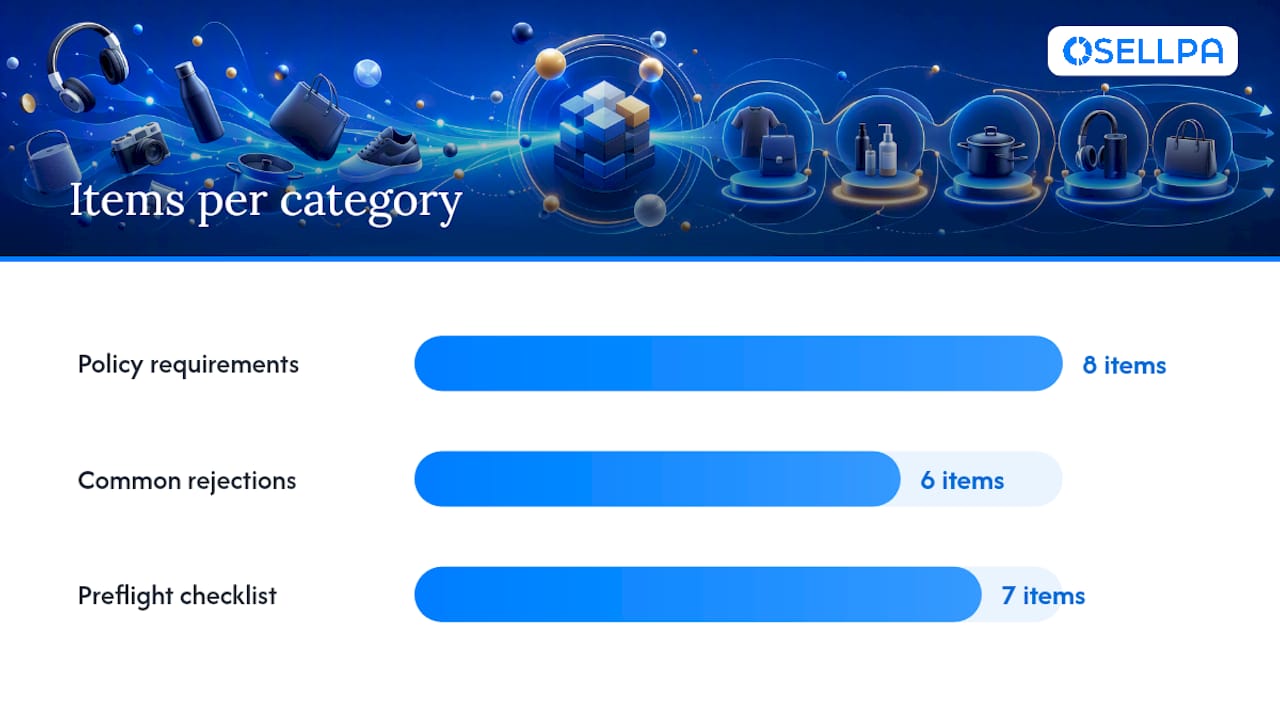
Policy requirements:
- Content must be suitable for a general audience. No explicit, violent, or politically sensitive material.
- All claims must be truthful and substantiated. Do not make comparative claims you cannot support.
- You must own or have licensed all assets in the video: footage, music, graphics, and fonts.
- The video language must match the marketplace language. An English-language video will be rejected in a non-English marketplace.
- The product shown in the video must match the ASIN the campaign is linked to.
Common rejection reasons:
- Letterboxing: black bars at the top or bottom of the frame. Fill the full 16:9 frame.
- Unreadable text: text that is too small to read on a mobile screen. Use large, high-contrast overlays.
- Incorrect aspect ratio: submitting a 4:3 or 1:1 file instead of 16:9.
- Music rights issues: using copyrighted music without a licence. Use royalty-free tracks or Amazon’s approved music library.
- Product mismatch: the video shows a different product variant or colour than the ASIN in the campaign.
- Misleading claims: superlatives (“the best”, “number one”) without substantiation.
Preflight checklist before upload:
- Confirm aspect ratio is 16:9 (or 9:16 for vertical)
- Check file format (MP4 or MOV) and file size (under 500MB)
- Verify captions are present and in the correct marketplace language
- Review all text for readability at small screen sizes
- Confirm music is royalty-free or licensed
- Check that the product in the video matches the campaign ASIN
- Use the safe-area template to confirm no critical content sits in the lower-right corner
Where to find templates, creative tools, and production help
Amazon’s built-in creative tools
The Video Generator inside the Advertising Console lets you create basic video ads from product images and text without external production software. It is not a substitute for a professionally produced creative, but it is a fast way to get a testable asset live while you develop higher-quality footage. Access it directly within the Sponsored Brands campaign creation flow.
Amazon also provides the official safe-area template as a downloadable image overlay. Import it into your editing software as a guide layer before you finalise text and graphic placement.
Production options
- In-house production: a smartphone, a clean background, and good lighting are sufficient for a testable UGC-style creative. Shoot vertically for mobile variants, horizontally for the primary 16:9 asset.
- Amazon Creative Services: available through the Advertising Console for sellers who want managed production. Pricing and availability vary by marketplace.
- Freelance and agency production: useful for polished studio-quality creatives. Brief your producer with the safe-area template and the spec sheet from Amazon’s ad specs page to avoid revision cycles.
When using Video Generator or vendor services, export platform-specific cuts and captions for each marketplace. A video produced for the UK marketplace needs English captions; the same creative submitted to a German marketplace will be rejected without German captions.
Pro Tip: Use Video Generator to create a rapid test creative in under an hour. If it generates meaningful CTR data, invest in a professionally produced version of the same concept. This approach saves production budget by validating the concept before committing to a full shoot.
How analytics and automation speed up Sponsored Brands video optimisation
The sellers who get the most from Sponsored Brands video are not necessarily those with the biggest budgets. They are the ones who review data consistently and act on it quickly.
A practical operational workflow:
- Daily: pull search term reports and add new negatives. Flag any campaigns where spend has spiked without a corresponding increase in conversions.
- Weekly: review CTR and CVR by creative variant. Pause variants with CTR below your account baseline. Rotate in a new test creative if the winner has been running for more than four weeks without a refresh.
- Monthly: review ACoS and ROAS by campaign destination (Brand Store vs PDP). Reallocate budget from underperforming campaigns to those hitting your target metrics.
Automated rules reduce the manual workload significantly. Set rules to pause keywords when ACoS exceeds your threshold, and to increase bids on keywords where CVR is above baseline and ACoS is within target. This keeps your campaigns optimised between manual review sessions.
Analytics and PPC automation tools built for Amazon sellers can connect directly to your advertising data via Amazon’s API, giving you profit-level visibility rather than just ad-level metrics. Knowing whether a campaign is profitable after COGS and fees changes how you set bid thresholds.
Pro Tip: Combine Brand Store analytics with your ad campaign data. If Store traffic is rising but conversion is flat, the problem is on the Store page, not in the campaign. If ad CTR is strong but Store traffic is low, check whether your Store destination URL is correct.
When is Sponsored Brands video worth the investment?
Most sellers ask this question at the wrong time: after they have already spent budget on a video that did not perform. The honest answer is that video is high-ROI in specific circumstances and a poor use of budget in others.
Video earns its place when your product has a demonstrable feature advantage, when your margins support the cost of creative production, and when your PDP is already converting organic traffic at a reasonable rate. A new product launch with a genuine point of difference is the clearest use case. The video does the work that a static image cannot: it shows the product in context, communicates scale and texture, and builds brand recognition across multiple impressions.
When static creatives and PDP optimisation are the better short-term choice: if your ASIN has fewer than 15 reviews, your PDP images are weak, or your category is purely price-driven, fix those fundamentals first. Video traffic sent to a poorly converting PDP is expensive traffic.
The sellers who get the best return from video campaigns are those who treat them as part of a broader measurement system. They know their margin per unit, their target ACoS, and their cost per new-to-brand customer. Without that data, it is difficult to know whether a video campaign is working or simply spending.
Osellpa gives your Sponsored Brands video campaigns a measurable edge
Running Sponsored Brands video without clear profit data is the fastest way to overspend. Osellpa connects directly to Amazon’s API to give you real-time profit tracking at the ASIN level, so you know exactly what margin each video campaign is working with before you set a bid.
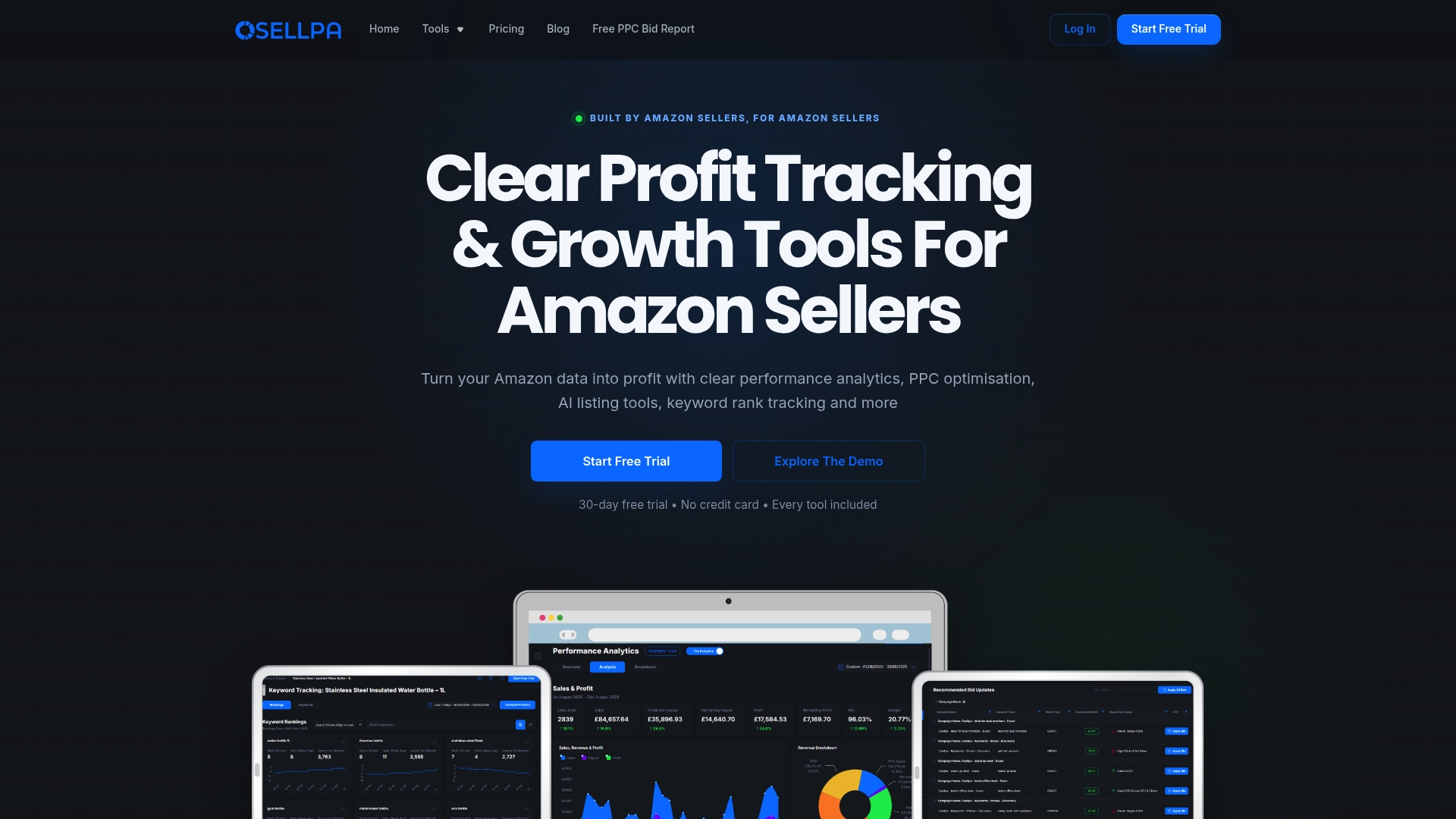
The PPC automation inside Osellpa applies rules tied to your actual margin thresholds, not just ACoS targets. Campaigns that exceed your cost ceiling are paused automatically. Keywords that hit your CVR and ACoS targets get scaled without manual intervention. You get the optimisation cadence described in this guide without spending hours in spreadsheets each week.
Sellers using Osellpa have reported increases in sales after implementing its automation tools. Start your free trial at Osellpa and connect your Amazon account in minutes.
Sources
The sources below are the authoritative references for everything covered in this guide.