Before we start, what is Amazon PPC optimisation?
Amazon PPC optimisation is the process of downloading a Targeting report from Amazon Ads and using the data inside it to optimise the bid for every keyword, product target and automatic targeting group. In practical terms, Amazon bid optimization means changing bids based on sales, ACOS, clicks and impressions rather than guessing.
The goal is to make each target profitable. You reduce bids where spend is too high, increase bids where profitable sales can be scaled, and heavily restrict Amazon PPC ads that attract traffic without sales.
Do this once a week. Bids, competitors and conversion rates change frequently, so a profitable account needs regular correction rather than a one-off setup.
It's also important to note that PPC is not a solution to all of your sale and performance problems. Without a quality listing that has good images, an optimised title & bullets, at least 10 reviews and a 4.2 average rating or higher, your PPC will struggle to be profitable no matter what system you implement. If you do not yet have a listing that meets those requirements achieving that should be your focus before starting PPC optimisation.
Now that we've covered that, let's dive in.
Set your target ACOS before changing bids
Target ACOS is the percentage of sales revenue you are willing to spend on advertising. It gives every bid decision a clear commercial benchmark.
Choosing the right target ACOS is incredibly important for Amazon PPC campaign optimization. Set your target too low and you wont compete in any auctions, too high and you wont make any profit.
The best way to calculate your initial target ACOS is to first calculate your breakeven ACOS.
E.g. after fees, COGS and other expenses I will make £10 profit on a £25 product. My breakeven ACOS is 40%.
Then once you have your breakeven ACOS, you can set your target ACOS based on what you reasonably expect your profit to be after PPC.
If you have no idea, halving your pre PPC profit is a good place to start, in the above example that would be £5.
If a product sells for £25 and you are willing to spend £5 to generate that sale, your target ACOS is 20%. A target below 20% has room to spend more. A target above 20% needs a lower bid.
You should adjust your target ACOS up or down depending on your performance each week. If you're not competing in any auctions, adjust your target up; if you're overspending and not making a profit, adjust your target down, if you're seeing good results then keep it the same.
Never adjust your target above your breakeven ACOS unless you're deliberately trying to increase sales at any cost, as this can result in a loss on every sale.
Once you have your target ACOS, you're ready for the next steps.
Download a 60-day Targeting report from Amazon Sponsored Ads
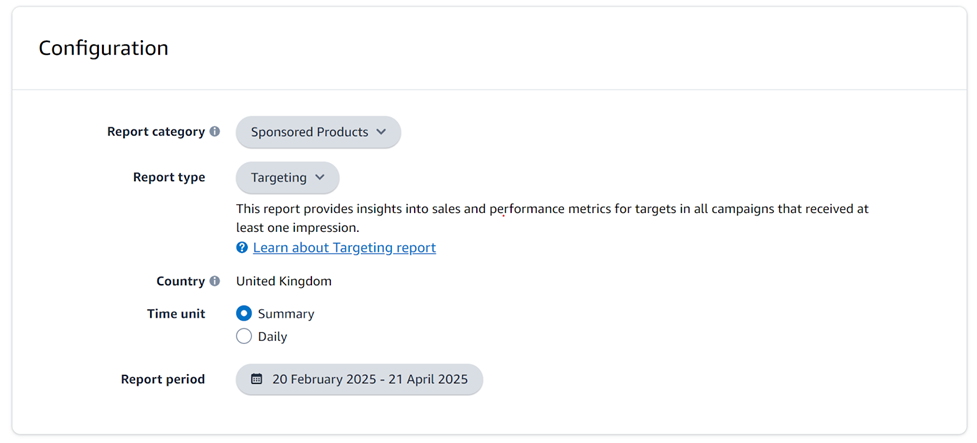
In Amazon Ads, go to Measurement and reporting, open Sponsored ad reports, and create a Sponsored Products Targeting report. Use Summary as the time unit and the last 60 days as the reporting period.
This is the report you need for Amazon Sponsored Ads optimization because it shows the performance of each keyword, ASIN and automatic target in your Sponsored Products campaigns.
Then, once the report has finished processing, download it and open it in Excel or Google Sheets.
Apply four clear bid rules to optimize PPC campaigns on Amazon
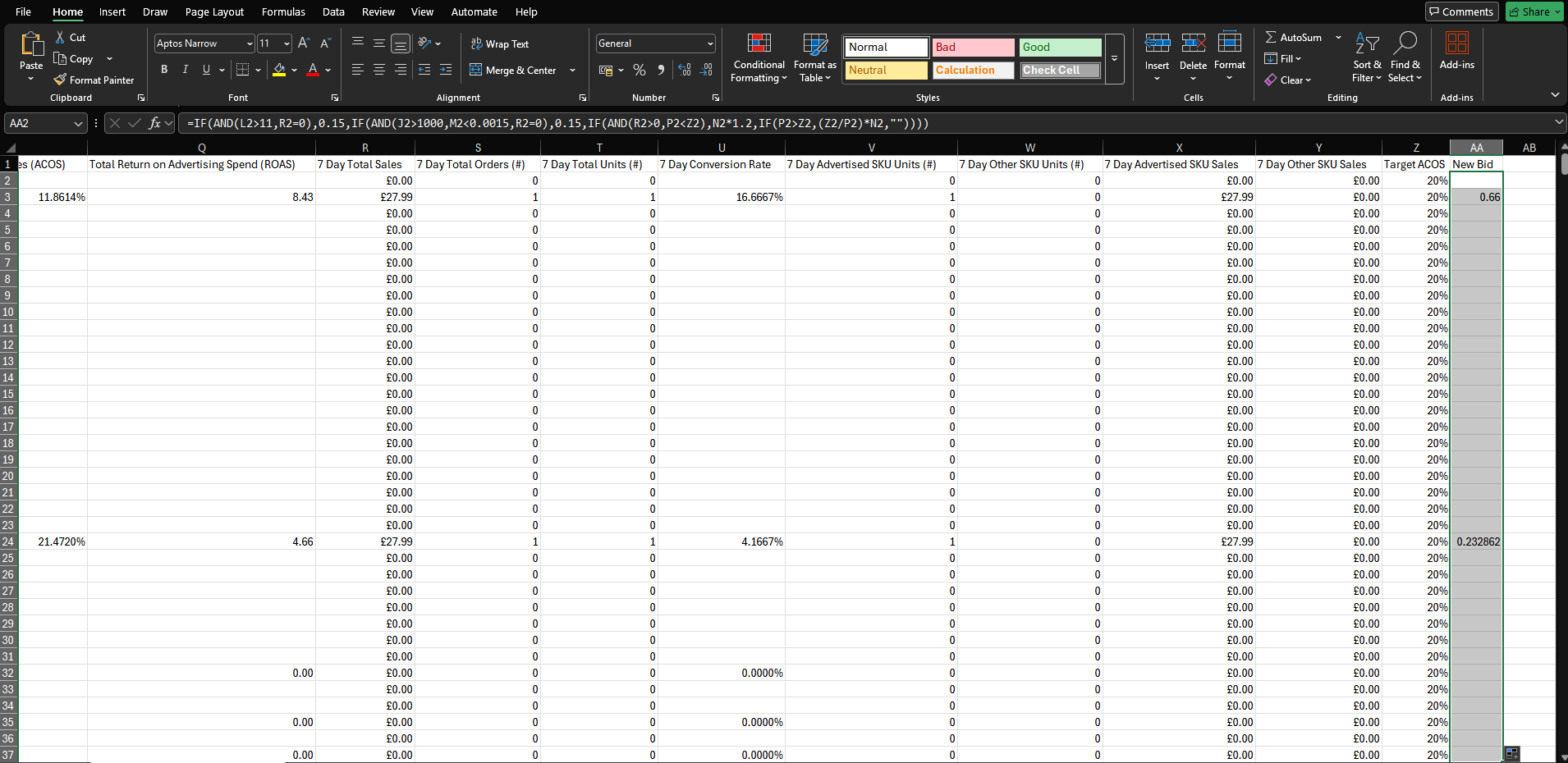
Once you have your report open in Excel, add 2 new columns: Target ACOS and New Bid .
Target ACOS: Cell to enter the target ACOS value you calculated earlier and apply it to all rows. Enter as a decimal e.g. 20% = 0.2, 15% = 0.15, 10% = 0.1.
New Bid: This is where we'll calculate what the new bid should be based on your performance data.
To calculate your optimised keyword/product target bid for Amazon campaign optimization, we're going to apply the following rules:
| Performance | New bid | Why |
|---|---|---|
| More than 11 clicks and no sales | £0.15 | The target has had a fair chance to convert and is wasting spend. |
| More than 1,000 impressions, CTR below 0.15% and no sales | £0.15 | Shoppers are seeing the ad but are not interested enough to click or buy. |
| Sales above zero and ACOS below target ACOS | CPC x 1.2 | The target is profitable, so raise the bid by 20% to pursue more sales. |
| ACOS above target ACOS | (Target ACOS / ACOS) x CPC | Reduce the bid in proportion to how far the target is above your goal. |
To achieve this in excel, we have created a formula. For the formula to work, you need to make sure the column letters below match the heading that you have on your report, if they don't, update the formula with the correct column letter.
| J - Impressions | L - Clicks |
| M - Click Through Rate (CTR) | N - Cost Per Click (CPC) |
| R - 7 Day Total Sales | P - Total Advertising Cost of Sales (ACOS) |
| Z - Target ACOS | |
Change any letters below to match the above e.g. if Clicks is column J on your report not column L, then change the L in the formula below to J. So L2 becomes J2, etc. Update Target ACOS Z to whichever column you added it to
Excel formula:
After ensuring the formula matches your report, copy it into cell 2 of the new bid column you added earlier, dont worry if the cell is blank, cells without bids are left blank, then drag the formula down to apply it to all rows.
You should now have a new optimised bid value for each of your keywords ready to be applied below.
Update the bids in Amazon Ads and repeat weekly
Open Sponsored Ads, then Campaign Manager and Targeting. For every row with a calculated New Bid, find the matching target and apply the new value.
Once you've finished updating all the targets, your bids are now fully optimised for the week.
Repeat the process every week. Consistent optimisation lowers spend on poor performers while keeping strong targets competitive as the marketplace changes. For Sponsored Products, this is the practical version of product listing ads optimization: every target keeps earning its place in the account.
- Use a fresh 60-day Targeting report.
- Apply one target ACOS consistently across the relevant product for the week.
- Calculate bids using the same four rules every week.
- Update every target with a New Bid value.
- If you're overspending, lower your target ACOS; if you're not competing in auctions, raise your target ACOS.
- Use the same process for manual Amazon PPC campaign optimization every week.
Conclusion: make bid optimisation a weekly habit
Profitable Amazon PPC comes from repeatedly moving spend away from targets that waste it and towards targets that generate sales below your target ACOS. If you want to optimise PPC campaigns on Amazon consistently, this weekly rhythm matters more than occasional large changes.
Once your existing bids are under control, the next practice is to find new profitable PPC search terms each month.
Optimise every target without rebuilding spreadsheets each week
Osellpa calculates and applies PPC bid changes for you using your Amazon performance data. You can use it for automated Amazon PPC, or create a report with rules similar to what you've learned here that are much easier to apply than manually updating each target in Amazon Ads.